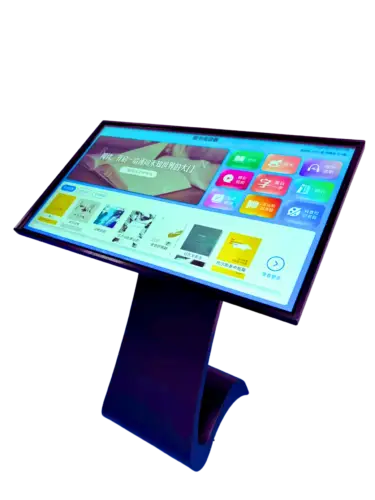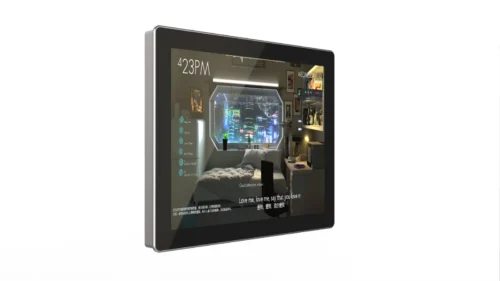


Two quotes land on your desk for the same machine. One is a panel PC — display, computer and touch in one sealed unit. The other is an industrial touch monitor paired with a box PC sitting in the cabinet. The monitor option is cheaper on the line item. It is also the option that, on the wrong project, adds a signal extender, a longer cable run, an extra enclosure, and a second point of failure you now have to support for the next seven years.
The hardware categories look interchangeable on a spec sheet. They are not interchangeable in a control architecture. This article walks through the seven decisions that actually separate them — cable distance, cabinet heat, spares strategy, environmental sealing, cost structure, expansion, and maintenance access — so the choice you make survives contact with the production floor.
A quick framing before the details: the question of panel PC vs touch monitor is rarely about screen quality. Both use industrial-grade LCDs and both support projected capacitive or resistive touch. The real question is where the computer lives, and everything else follows from that single architectural decision.
New to the hardware? Our what is an industrial panel PC explainer covers internal architecture, and the complete buyer’s guide covers specification end to end.
Decision 1: Cable Distance Between Machine and Computer
This single factor eliminates one option on more projects than any other.
- Panel PC: the computer is behind the glass. There is no video or USB extension to design, no signal degradation to calculate, no extender to power and protect. The only cable into the station is power and network.
- Touch monitor + box PC: a video cable (HDMI/DP), a USB cable for the touch controller, and often a serial or network line must run from the monitor to wherever the box PC sits.
The practical limits matter. Standard HDMI and USB 2.0 runs become unreliable beyond roughly 5 metres without active extension. USB touch signals are the more fragile of the two — a monitor that displays perfectly can still refuse touch input at distance. If your box PC sits 15 metres away in a control room, you are not comparing two products; you are buying an extender solution (HDBaseT, fibre, or KVM over IP), and that changes the budget and the failure modes.
| Distance (monitor to computer) | Practical implication |
|---|---|
| Under 3 m | Either architecture works; cost decides |
| 3–10 m | Active extension likely; verify touch signal specifically |
| 10–30 m | Extender/KVM required — compare total cost, not device price |
| Over 30 m | Box PC in the cabinet or KVM over IP; panel PC becomes the simpler answer |
Decision 2: Heat, Cabinet Space, and Where the Compute Lives
A box PC needs somewhere to live: a control cabinet with enough volume, enough clearance for its heatsink, and a thermal budget that accounts for everything else in that enclosure.
- Panel PC: heat is managed at the point of use, in open air on a machine front. No cabinet volume consumed, no cabinet thermal calculation required.
- Box PC + monitor: you gain flexibility about where the heat goes — useful when the mounting point is inside a small sealed enclosure, or when the cabinet is already air-conditioned for drives and PLCs.
If the mounting location is small, sealed, or already thermally loaded, do not put the computer there. That is the strongest argument for the split architecture — and the reason many integrators specify box PC plus monitor for cramped OEM machine enclosures.
Decision 3: Maintenance Access and Downtime Profile
Ask what fails and what has to be replaced, then count the cost of each scenario.
| Failure | Panel PC | Monitor + Box PC |
|---|---|---|
| Touchscreen or LCD failure | Replace the whole unit | Replace the monitor only |
| Computer failure (board, SSD, RAM) | Replace the whole unit | Swap the box PC — monitor untouched |
| Software fault | Remote or local access | Remote or local access |
| Spares inventory | One SKU per station | Two SKUs, but each is cheaper |
On a single-machine installation the difference is small. On a fleet of twenty stations, the spares arithmetic changes: one spare box PC can serve twenty monitors, but twenty panel PCs need at least a couple of full spare units on the shelf. Panel PC manufacturers mitigate this with platform revision control and long availability windows — a supplier worth buying from will confirm how long the exact platform stays in production, and can trace a failed unit to the specific component batch. That traceability determines whether a field failure takes days to diagnose or forty-eight hours.
Decision 4: Environmental Sealing
- Panel PC: the sealed front bezel is the product. IP65 is standard on the front face; IP66 and IP69K stainless variants exist for washdown. There is nothing else to protect — the computer is already inside the sealed housing.
- Touch monitor: the front face is sealed. The rear is open, with connectors and a power input. That is fine if the back sits in a dry cabinet, and not fine if it sits where ambient moisture or cleaning spray can reach it.
If the rear of the display is exposed to the same environment as the front — washdown areas, food processing, outdoor installations — the split architecture requires an additional enclosure or a sealed monitor with a rear cover. That extra hardware rarely appears in the first quotation.
VESA mounting, arm mounting and panel cut-out dimensions differ between the two categories as well, which is covered in our mounting options comparison — check that before committing to a cut-out drawing.
Decision 5: Cost Structure (Not Just Price)
The honest comparison is total installed cost, not device price.
| Cost line | Panel PC | Monitor + Box PC |
|---|---|---|
| Devices | Higher unit cost | Lower unit cost, two devices |
| Cables and connectors | Power + network only | Video, USB/touch, plus power |
| Extension hardware | None | Extenders/KVM if over 3–5 m |
| Enclosure for computer | Not needed | Cabinet or sealed housing |
| Installation labour | One unit to mount | Two units, two cable routes |
| Spares | Unit cost per spare | Cheaper per item, two SKUs |
| Upgrade path | Replace whole unit | Replace computer only |
Short runs, tight cabinets and simple installations usually favour the panel PC once labour and cabling are counted. Long runs, cramped mounting points, and multi-station setups usually favour the split — sometimes decisively.
Decision 6: Performance, Expansion and Graphics
- Box PC: internal space for PCIe expansion (fieldbus cards, capture cards, GPU), multiple drives, and easier thermal design for high-TDP processors. If the application needs machine vision compute, add-in cards, or a heavy SCADA/VMS stack, this is where it goes.
- Panel PC: expansion is limited to what fits behind the display — typically M.2 or Mini-PCIe for storage, wireless, or a single fieldbus module. Enough for MES terminals, SCADA clients, and standard HMI duty; not the natural home for a GPU.
Choose by the software you will run in three years, not the one you are running today. And if the open question is instead whether the machine needs a general-purpose computer at all versus a fixed-function operator terminal, that trade-off is covered in our panel PC vs HMI comparison.
Decision 7: Multi-Station Architectures
The split architecture unlocks options a panel PC cannot match: one box PC driving multiple touch monitors. A single industrial computer with dual or quad video outputs can serve an operator station, a supervisor view and a maintenance terminal, with one software image to update and one machine to back up. In control rooms, test benches and multi-operator cells this is often the cheapest and cleanest answer. If that pattern fits your project, the decision has already been made for you — buy monitors and size the box PC for the total workload.
Decision Matrix
The table below resolves panel PC vs touch monitor for the installations that come up most often in machine specifications.
| Your situation | Recommended architecture |
|---|---|
| Single station, single machine, short cable run | Panel PC |
| Washdown or wet environment, rear exposed | Panel PC (sealed) or IP-rated monitor + sealed housing |
| Mounting point cramped or inside a sealed cabinet | Monitor + box PC (computer relocated to a larger cabinet) |
| Distance over 5 m between display and computer | Panel PC unless KVM/extension is already planned |
| Machine vision, PCIe cards, GPU required | Monitor + box PC |
| Multiple stations, one software image, central compute | Monitor(s) + one box PC |
| Twenty-station fleet with tight spares budget | Compare carefully — spare strategy often decides |
| Custom bezel, logo and I/O layout needed | Panel PC (OEM/ODM customization) |
A Note on Sourcing Either Architecture
Whichever side of this decision you land on, the reliability question is the same one buyers ask too late: what is actually inside the box? In split architectures the box PC is often sourced separately and arrives through a distribution channel where component provenance is untraceable. Ask any supplier two questions — whether the components are 100% new and original, and whether a failed unit can be traced back to its component batch. A manufacturer operating one-item-one-code traceability can answer both from records; on OEM/ODM builds this also determines how quickly a custom configuration can be sampled, which is commonly from a single unit.
FAQ
Can I use an ordinary commercial touchscreen with a box PC instead of an industrial monitor? Only where the environment is benign. Commercial monitors lack the IP-rated front face, wide-temperature rating and long-availability promise. You will also struggle to source a replacement of the same model in year three — which is exactly when a fleet needs one.
Is a panel PC always more expensive than a monitor plus box PC? On device cost, usually yes. On installed cost — once cable runs, extension hardware, cabinets and labour are counted — the gap narrows sharply and often reverses for short-distance single-station projects.
What is the maximum distance for a touch monitor from its computer? Practical reliability limits are around 3–5 metres for standard HDMI and USB. Beyond that, plan active extension (HDBaseT, fibre, or KVM over IP) and confirm the touch signal is extended as well as the video — many failures are touch-only.
Which option lasts longer? Both are industrial hardware with 5–7 year service expectations when specified correctly. The split architecture lets you replace components independently, which usually extends the usable life of the installation rather than the individual device.
Specifying a Station? Get the Architecture Checked
If you are weighing a panel PC against a monitor-plus-box-PC build for a machine or line in Southeast Asia, send us the constraints — mounting location, cable distance, cabinet space, environment and software stack. Our engineering team will tell you which architecture we would choose and why, including the cases where the cheaper split option is the correct one. Sampling starts from one unit, and every build uses 100% new, fully traceable components.
Prefer to talk it through directly? Send your requirement through our inquiry form or message us on WhatsApp.